- Python 100%
| Filename | Latest commit message | Latest commit date |
|---|---|---|
| LICENSE | ||
| main.py | ||
| README.md | ||
| upscale.py | ||

upscalr
No AI image upscaler that uses watered down bilinear interpolation to create new pixels
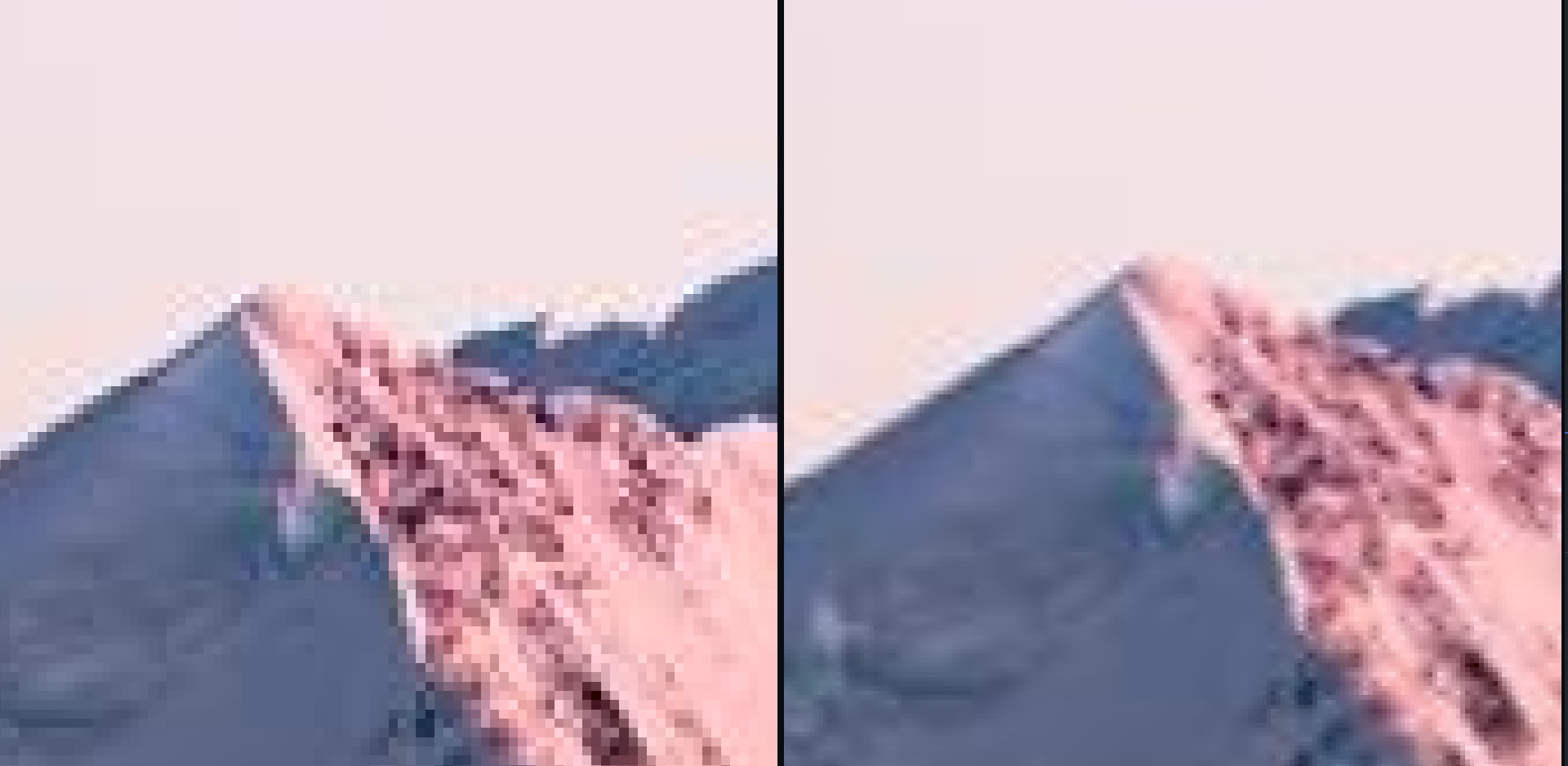
This was a test project of sorts and proof of concept. The upscaled images don't look much better until zoomed in a lot. The method of upscaling I used is bilinear interpolation.
Current limitations:
- No GUI
- JPEG only
- 4x upscale only
- messy code
Installation
- Install the "clipboard" module using pip
- Install Kivy (https://kivy.org/doc/stable/gettingstarted/installation.html)
- Download the code as a .zip
- Extract archive
- Open a terminal in the folder
- Run the main.py file using:
>>> python3 main.py
Usage
Once program is run, the following prompts will be displayed:
Path to image:
Type in the path of the image you want to upscale.
It may be easiest to simply move the image into the same folder as main.py and type the name of the file in the prompt.
Enter upscale factor:
Due to the unfinished nature of this project, you can currently only type 4 for this prompt.
This will quadruple the amount of pixels in your image and double the height and width.
Once you submit these prompts, the program will start running and will eventually display the upscaled image. To save it, you have to save it using the image viewer. Ctrl+Shift+S may also work. Note: the image will not be saved unless you manually save it as a file.
Here are the original images used for the demo above:
https://ibb.co/FXz8FHH - Downscaled image to input into program
https://ibb.co/ctCJFw3 - Source image to compare output to